
CallPano questions, answered
Last updated:
Before your first call, or before choosing a plan
CallPano supports browser-based video conversations with optional live panoramic viewing. Here are the practical details about joining, camera compatibility, trial usage, payments, and cancellation. Start with your actual devices and test the complete setup before relying on it for a meeting.
30 trial participant-minutes. No credit card required to start.
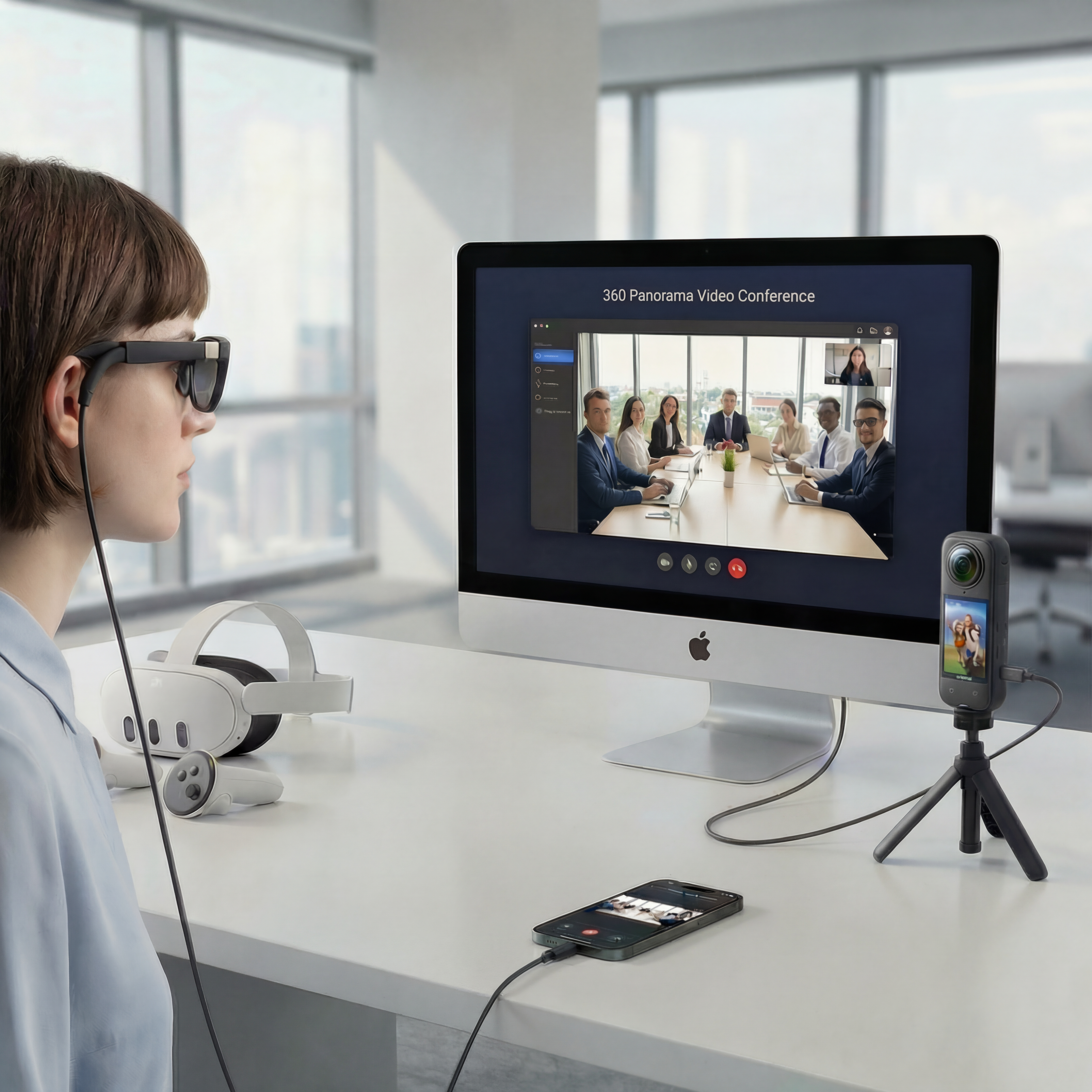
One live environment. Independent views. Each participant chooses where to look, without changing anyone else’s view.
Know what you need before you invite anyone
A standard webcam call and an interactive 360° call have different equipment requirements. Your guests do not need the host’s camera setup, and a headset is optional. The answers below distinguish browser access from panoramic camera compatibility so you can plan a realistic test.
Join in a browser
No app download is needed for the browser workflow. Guest invite links let participants join without creating their own CallPano accounts.
Test your panoramic source
Use a compatible Insta360 X4 or X5 webcam setup that delivers a full equirectangular panorama to the browser. A cropped, reframed, or flat webcam image is not enough. Verify the camera firmware, USB mode, computer, and browser together before inviting guests.
Understand the trial
New accounts receive 30 trial participant-minutes, not a fresh allowance every month. Three people connected for ten minutes use 30 participant-minutes.
Manage your subscription
Use Plans & Billing in your account, then Manage Subscription to open the existing billing portal. Review your billing details and cancellation options there.
Check the details that matter to your team
Read the Security overview for published safeguards and limitations, Pricing for current plan allowances, and Help for product instructions. Decide whether those documented capabilities meet your own requirements; do not assume a certification or a guarantee of camera compatibility.
From room to live 360° in three steps
- 1
Create a Room
Create your host account and set up a room from the dashboard. Schedule your meeting if you want to arrange it in advance.
- 2
Share the Link
Send the invitation to your participants. Guests use a supported browser without a CallPano account or app download. Test permissions and room access before the session.
- 3
Go Live in 360°
Test an Insta360 X4 or X5 through a compatible webcam mode that supplies full panoramic output, not just a flat webcam feed. Camera firmware, computer, and browser compatibility matter. Once the panorama is working, guests can look around independently.
Start free. Choose the plan that fits.
30 trial participant-minutes for new accounts, not a monthly reset. No credit card required to start.
- Free
- 30trial participant-minutes for new accounts
- Starter
- $29per month
- Pro
- $99per month
- Enterprise
- $299per month
Allowances and limits vary by plan. View Plans for participant-minutes, rooms, and billing details.
Frequently asked questions
Do I need to download an app?
No app download is required to use CallPano in a supported browser. A browser-based guest can open an invite link. Camera access and immersive features still depend on the device, browser, and permissions. The Glossary explains the video and browser terms used here.
Does a guest need an account or subscription?
No. Guests can join through an invitation without creating a CallPano account or buying a subscription. The host needs an account and creates the room; room access requirements and the host’s plan limits still apply.
Which cameras can I use?
Use a compatible Insta360 X4 or X5 webcam setup that delivers a full equirectangular panorama to the browser. A cropped, reframed, or flat webcam image is not enough. Verify the camera firmware, USB mode, computer, and browser together before inviting guests. A standard webcam works for regular flat video calls. Consult Insta360’s official X5 support and the X5 setup guide; do not assume every webcam mode exposes panoramic output.
Can I join in VR through a browser?
A supported Meta Quest browser can offer optional WebXR viewing and head tracking, subject to device, browser, and permission support. CallPano does not provide a native Quest app. Other guests can use a normal screen without a headset.
What does the free trial include?
New accounts receive 30 trial participant-minutes. This is a trial allowance, not a monthly reset. Each connected participant contributes usage: three participants for ten minutes use 30 participant-minutes. See Pricing for current room and participant limits.
Who handles payments, and does CallPano store card details?
Stripe handles payments. CallPano does not store your card details on its servers. Payment and subscription management use the existing Stripe checkout and billing portal workflows. See Help for billing instructions.
Where can I learn about security?
Read the Security overview for published security measures and limitations before sharing sensitive information. Evaluate those details against your organization’s needs rather than assuming a particular certification or regulatory suitability.
How do I cancel my subscription?
Sign in, open Plans & Billing, and click Manage Subscription to access the billing portal and cancel. As described in Help, the paid plan remains active until the end of the current billing period, then the account reverts to the Free tier. Cancellation does not create a new free trial allowance.
Test a call with your own setup
Use 30 trial participant-minutes to check your browser, audio, invitation links, and camera before choosing a paid plan.
No credit card required to start.