
Join a panoramic call through Meta Quest Browser
Last updated:
For guests testing optional headset viewing before a meeting
Use Meta Quest Browser to test a CallPano invitation before relying on headset viewing for a meeting. Begin with the ordinary browser call and working audio, then try optional immersive viewing if supported. CallPano has no native Quest app, and WebXR availability depends on your particular device, browser, and permissions.
30 trial participant-minutes. No credit card required to start.
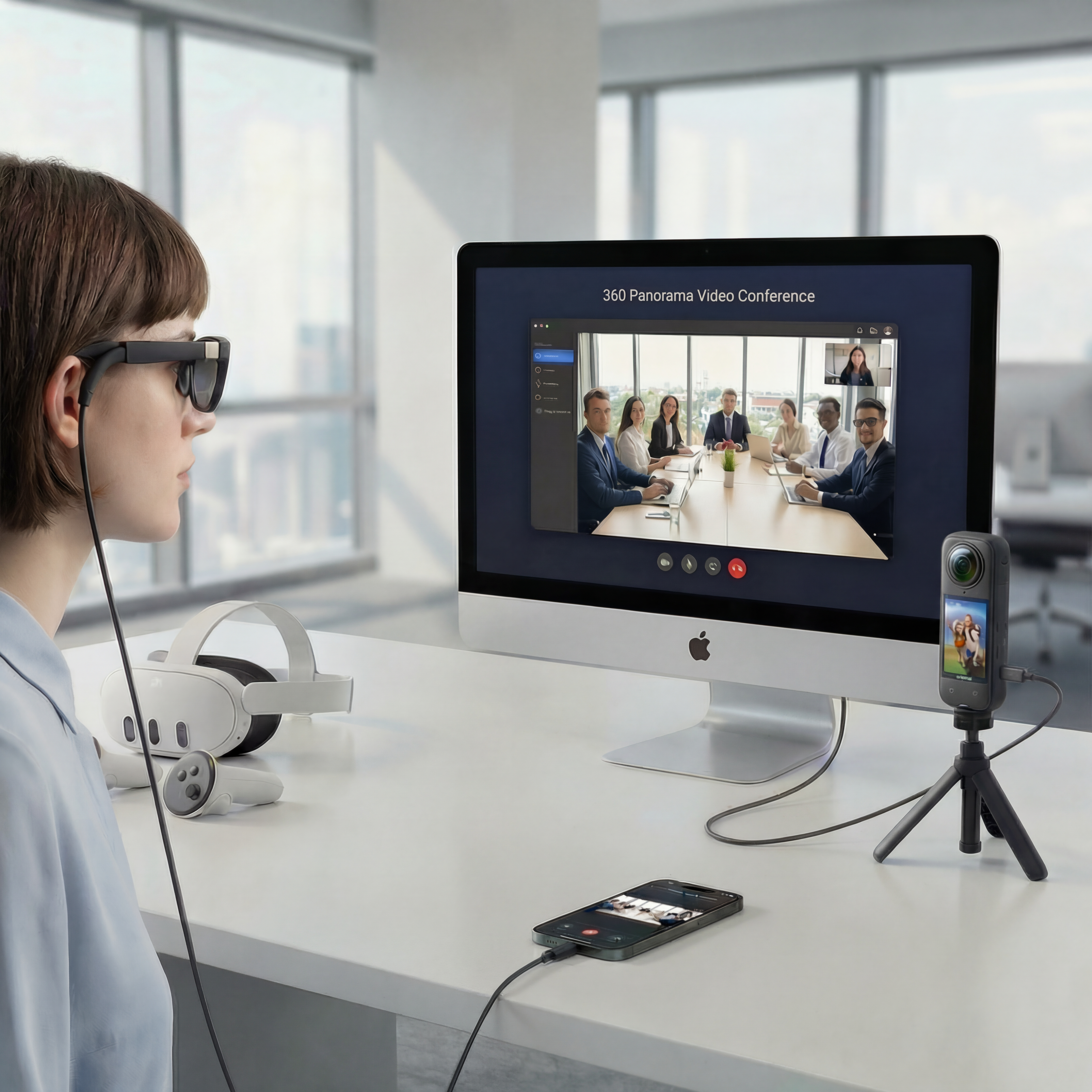
One live environment. Independent views. Each participant chooses where to look, without changing anyone else’s view.
Opening the room is only the first checkpoint
A headset browser can display a meeting page without making every immersive feature available. Separate link access, microphone permission, live panorama playback, and optional WebXR into individual checks. That makes it easier to identify the problem and keeps a normal-screen browser available if the headset cannot provide a comfortable, usable view.
Start with current device guidance
Use Meta Quest Help for current browser, system update, permission, and device safety instructions rather than relying on fixed menu labels.
Check the ordinary call first
Confirm that you can open the invitation, meet room access requirements, hear the host, and be heard before testing immersion.
Verify the source with the host
The host must share full equirectangular camera output. A headset cannot turn a cropped webcam image into a complete panorama.
Keep another way to join
Have the same invitation available on a normal-screen device with a supported browser if headset viewing is unavailable or uncomfortable.
Test stationary viewing before a moving tour
Ask the host to keep the camera stationary while you check orientation and optional head movement. Head tracking, where supported, changes viewing direction rather than camera location; do not assume stereoscopic depth or a walkable scene. Follow Meta’s safety guidance and stop if uncomfortable. See browser VR meetings for limits and the X5 guide for host-side preparation.
Test joining a CallPano call in Meta Quest Browser
- 1
Prepare the headset and invitation
Follow Meta Quest Help for current system and browser update instructions and safe headset use. Charge the device, check its connection, and have the host’s invitation and any room password ready.
- 2
Open the room in the headset browser
Open Meta Quest Browser and navigate to the invitation. Follow the room’s join prompts. This is a browser workflow, not a native CallPano Quest application.
- 3
Check microphone permission and conversation
Respond to relevant browser permission prompts. Confirm that you can hear the host and that they can hear you. If audio fails, check browser and device permissions using Meta’s current instructions before continuing.
- 4
Verify the live panoramic source
Ask the host to share a tested full equirectangular camera feed and hold the camera still. Confirm that the scene is live and that available viewing controls show different directions without changing other guests’ views.
- 5
Try immersion only where available
If the browser and call offer an immersive viewing option, try it and check orientation and supported head movement. If unavailable, do not assume WebXR support; use the ordinary browser view or a supported normal-screen device.
- 6
Agree on a comfortable fallback
Run a short test before a moving tour. Stop headset viewing if uncomfortable, and return to the meeting on a normal screen if needed. Tell the host which viewing method you will use for the real session.
Start free. Choose the plan that fits.
30 trial participant-minutes for new accounts, not a monthly reset. No credit card required to start.
- Free
- 30trial participant-minutes for new accounts
- Starter
- $29per month
- Pro
- $99per month
- Enterprise
- $299per month
Allowances and limits vary by plan. View Plans for participant-minutes, rooms, and billing details.
Frequently asked questions
Where do I download the CallPano Quest app?
There is no native CallPano Quest app. Use a supported headset browser and test the invitation there. Optional immersive viewing depends on device, browser, permissions, and WebXR support.
Why can I open the meeting but not enter immersive viewing?
Page access and immersive support are different capabilities. Check your current device and browser guidance with Meta Quest Help. If immersion is unavailable, use a supported ordinary browser view rather than assuming it can be enabled.
Does moving my head move me around the property?
No. Supported head movement changes the viewing direction within the camera panorama. The on-site host must move the camera to provide a different physical viewpoint.
What should the host check before I join?
Use a compatible Insta360 X4 or X5 setup that delivers full equirectangular camera output to the browser, not a cropped or reframed flat feed. Test firmware, USB mode, computer, browser, audio, and the connection together. Start with a stationary camera and verify the scene with another guest before testing optional headset viewing.
What if the headset view feels uncomfortable?
Stop immersive viewing, follow the device maker’s safety guidance, and use a normal-screen browser if appropriate. Avoid assuming a moving camera will feel comfortable just because a stationary test worked.
Test the guest device before the tour starts
Arrange a short stationary call and keep a normal-screen invitation ready as a fallback.
No credit card required to start.