
Bring a real place into an educator-led conversation
Last updated:
For teachers, museum educators, and hosts on location
Connect an educator-led group with someone who can explain a real place as it appears now. A live panoramic view gives the group surroundings to discuss rather than a single fixed frame. Plan learning questions, local supervision, and permission first, and use an educator-managed setup appropriate to your institution’s policies.
30 trial participant-minutes. No credit card required to start.
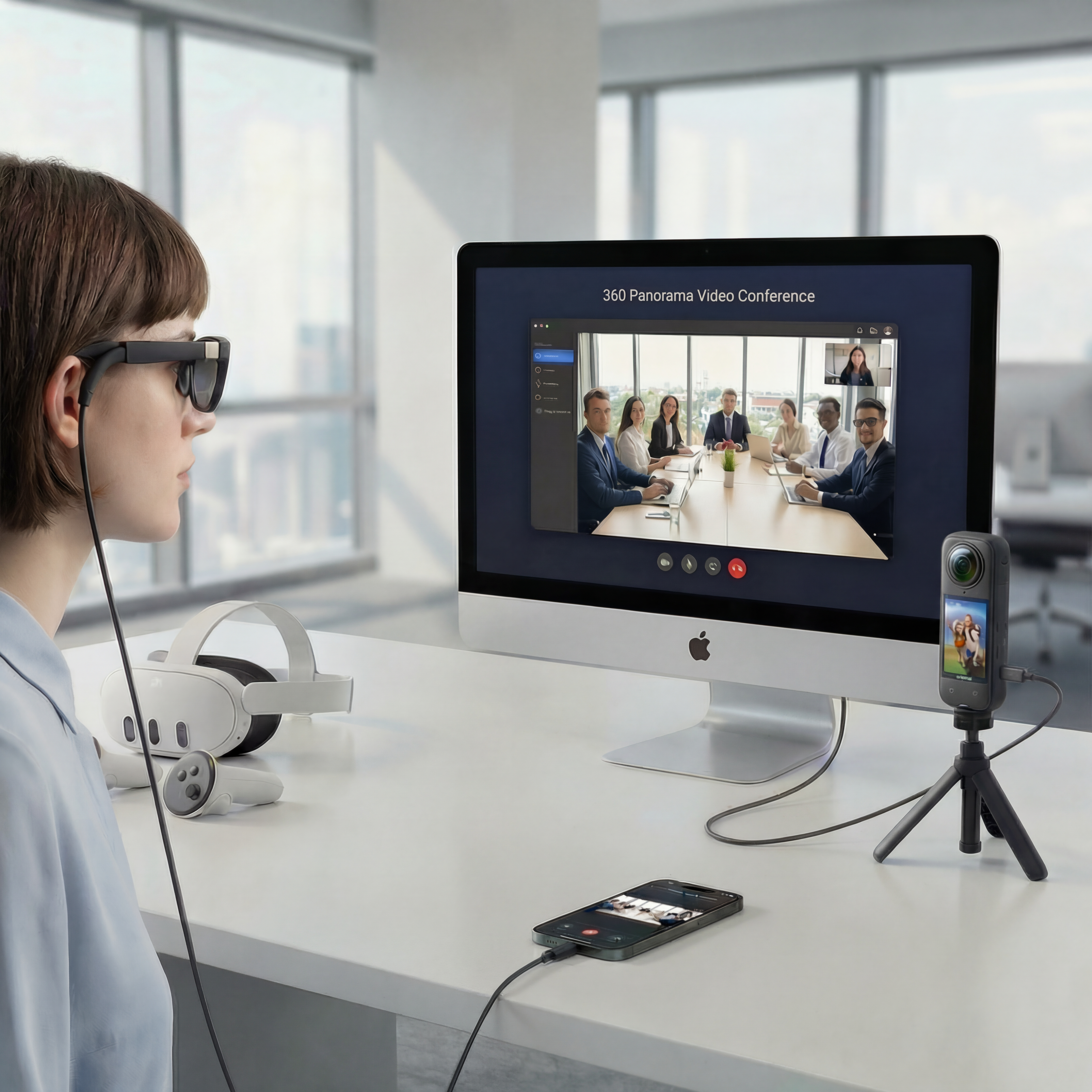
One live environment. Independent views. Each participant chooses where to look, without changing anyone else’s view.
A remote visit needs a learning plan, not just a camera
A wide view can overwhelm a group if nobody knows what to notice. Agree on a few observation questions and safe stopping points with the host before the session. An educator can guide attention, invite questions, and connect what the group sees to the lesson without suggesting that every learner needs an individual account or headset.
Ask someone who is actually there
Let the on-location host explain visible features and answer questions during the visit, rather than relying only on a prerecorded presentation.
Build an observation activity
At a museum, ask the class to compare exhibit features from an approved viewpoint. Choose details for the group to notice and discuss with the educator before moving to the next location; follow the museum’s filming permissions.
Keep participation educator-managed
Use an educator-hosted or managed group setup with local supervision and appropriate institutional permission. Do not require children to create accounts.
Use a normal screen
A supervised group can view the scene on an appropriate display. Headsets are optional and should not be assumed suitable or required for learners.
Prepare the learning environment on both sides
Use a compatible Insta360 X4 or X5 setup that supplies full equirectangular camera output to the browser, not a cropped or reframed flat feed. Verify firmware, USB mode, computer, browser, audio, and connection quality before the visit. Obtain the necessary institutional and location permissions, check applicable service and device requirements, and decide who may be visible or audible. Avoid sharing children’s identities, work, or private surroundings unnecessarily. The educator should manage participation and local supervision; the on-location host should control safe movement. Read the Security overview for published information and what a 360° call is for viewing limits. This page makes no child-privacy compliance or accessibility guarantee.
From room to live 360° in three steps
- 1
Create a Room
Create your host account and set up a room from the dashboard. Schedule your meeting if you want to arrange it in advance.
- 2
Share the Link
Send the invitation to your participants. Guests use a supported browser without a CallPano account or app download. Test permissions and room access before the session.
- 3
Go Live in 360°
Test an Insta360 X4 or X5 through a compatible webcam mode that supplies full panoramic output, not just a flat webcam feed. Camera firmware, computer, and browser compatibility matter. Once the panorama is working, guests can look around independently.
Start free. Choose the plan that fits.
30 trial participant-minutes for new accounts, not a monthly reset. No credit card required to start.
- Free
- 30trial participant-minutes for new accounts
- Starter
- $29per month
- Pro
- $99per month
- Enterprise
- $299per month
Allowances and limits vary by plan. View Plans for participant-minutes, rooms, and billing details.
Frequently asked questions
Should children create CallPano accounts for a field trip?
This workflow does not encourage child accounts. Use an educator-managed setup with local supervision, appropriate permissions, and a review of your institution’s policies and applicable service requirements.
Can the class use one shared display?
An educator can present a browser view on an appropriate local display and guide the group’s questions. Test the room’s audio and visibility beforehand and decide how the educator will control the viewing direction.
What privacy planning is needed?
Agree who may appear or speak, obtain appropriate permission, and avoid exposing identities or private material unnecessarily. Review institutional requirements and the Security overview; do not assume a compliance guarantee.
Does everyone need a VR headset?
No. A normal-screen browser view is available without headsets. Optional WebXR depends on device and browser support, and CallPano has no native Quest app. Follow device requirements and your institution’s policies if considering headsets.
How should the educator structure the session?
Agree on a few learning questions, ask the host to pause at planned viewpoints, and leave time for discussion. Test the full educator-managed setup and prepare an alternative activity if the live connection fails.
Start with a short, supervised rehearsal
Test the educator’s display, audio, and planned observation questions with the location host before including the group.
No credit card required to start.