
What is a 360° video call?
Last updated:
For anyone comparing a panorama with a regular video call
A 360° video call is a live conversation in which a panoramic camera shares the surrounding space, and each viewer chooses where to look independently. Unlike a standard video call, everyone need not follow the camera operator’s framing. Guests explore the live panorama in a supported browser while talking with the host.
30 trial participant-minutes. No credit card required to start.
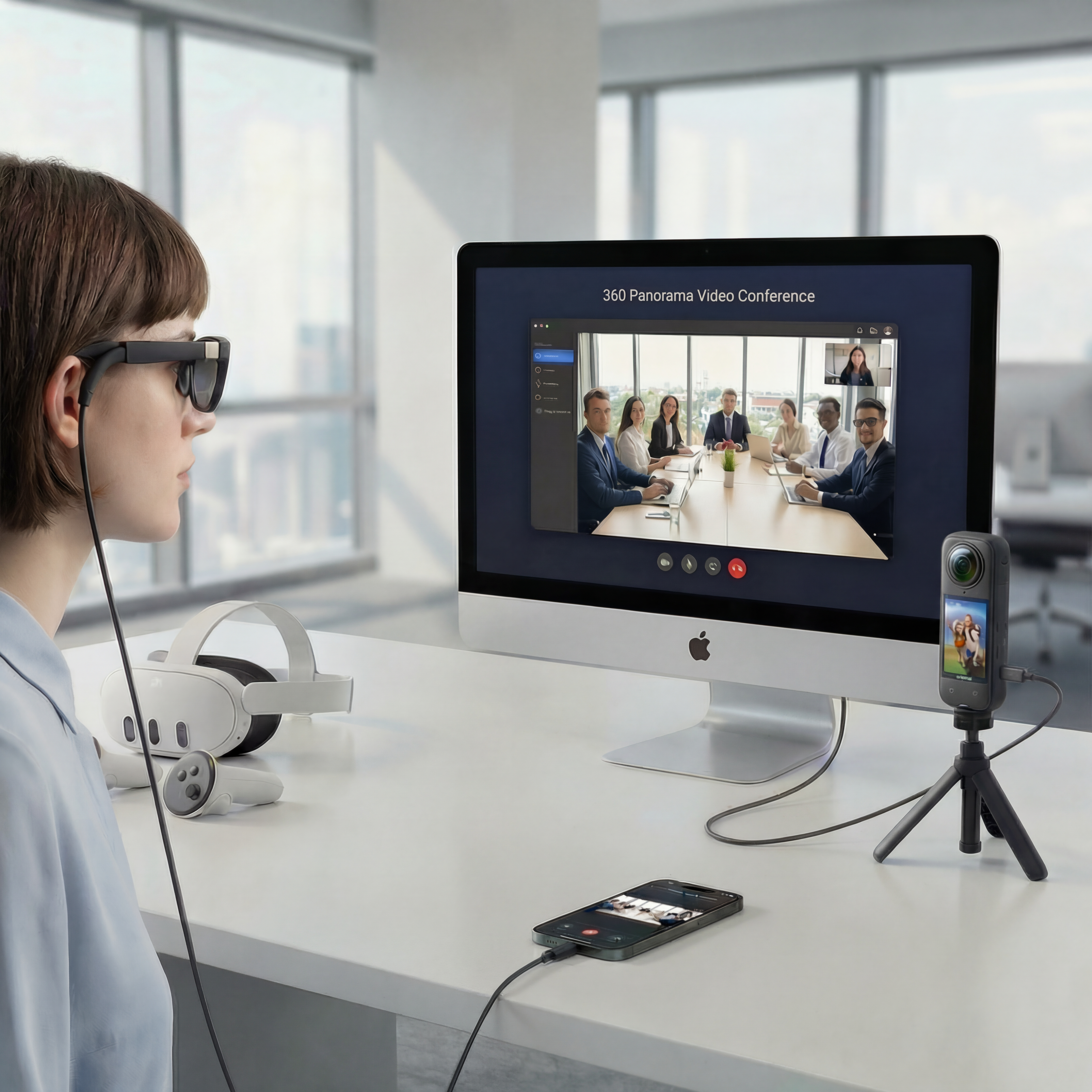
One live environment. Independent views. Each participant chooses where to look, without changing anyone else’s view.
The camera shares the space. You choose the view.
A regular webcam sends a fixed frame. A compatible 360° camera sends a panorama covering the scene around it. CallPano renders that panorama in the browser, letting each participant pan and zoom without moving anyone else’s view. Looking around changes your viewing direction, not the camera’s physical position.
Independent viewing
One guest can look toward a doorway while another checks the ceiling. Both remain in the same live conversation and see the same moment from the camera’s position.
A browser for guests
Guests open an invitation in a supported browser without installing an app or creating a CallPano account. The host creates an account and room.
Equipment for the panoramic source
Use a compatible Insta360 X4 or X5 webcam setup that delivers a full equirectangular panorama to the browser. A cropped, reframed, or flat webcam image is not enough. Verify the camera firmware, USB mode, computer, and browser together before inviting guests.
A headset is optional
Use a normal screen to pan and zoom. Supported VR browsers can offer optional WebXR viewing and head tracking; headset and browser support vary.
More context, not unlimited detail
A panorama spreads video resolution across the surrounding scene, so zooming does not recover detail the camera never captured. Lighting, stitching, upload bandwidth, and browser performance affect the result. Viewers cannot move behind an object or walk to a different camera position. Test audio and image quality, and use an on-site check when the task requires it.
From room to live 360° in three steps
- 1
Create a Room
Create your host account and set up a room from the dashboard. Schedule your meeting if you want to arrange it in advance.
- 2
Share the Link
Send the invitation to your participants. Guests use a supported browser without a CallPano account or app download. Test permissions and room access before the session.
- 3
Go Live in 360°
Test an Insta360 X4 or X5 through a compatible webcam mode that supplies full panoramic output, not just a flat webcam feed. Camera firmware, computer, and browser compatibility matter. Once the panorama is working, guests can look around independently.
Start free. Choose the plan that fits.
30 trial participant-minutes for new accounts, not a monthly reset. No credit card required to start.
- Free
- 30trial participant-minutes for new accounts
- Starter
- $29per month
- Pro
- $99per month
- Enterprise
- $299per month
Allowances and limits vary by plan. View Plans for participant-minutes, rooms, and billing details.
Frequently asked questions
How is a 360° call different from a regular video call?
A regular call shows the camera operator’s frame. A 360° call provides a live panorama in which each viewer independently chooses a direction and zoom level, without changing other viewers’ views.
Is a 360° call the same as a recorded virtual tour?
No. A 360° call is live and includes conversation. A recorded tour or a collection of still panoramas is captured beforehand and does not by itself provide a live discussion with someone on location.
What equipment do I need to host panoramic video?
Use a compatible Insta360 X4 or X5 webcam setup that delivers a full equirectangular panorama to the browser. A cropped, reframed, or flat webcam image is not enough. Verify the camera firmware, USB mode, computer, and browser together before inviting guests. You also need a supported computer and browser, a reliable connection, and working audio. See the X5 setup guide.
Does everyone need a 360° camera or VR headset?
No. Only a participant publishing a panorama needs the compatible panoramic camera setup. Guests can look around on a normal screen in a supported browser. Optional headset viewing depends on device and browser support.
Can a guest move around the space virtually?
Guests can rotate and zoom their view from the camera’s current position, not freely walk through a reconstructed scene. To show a different physical viewpoint, the person on location needs to move the camera.
Can I use a normal webcam instead?
Yes, for standard video calls. Selecting a panoramic viewing mode does not turn a flat webcam feed into genuine 360° video. See the Glossary for explanations of panoramic video and webcam modes.
Try looking around together
Start with 30 trial participant-minutes and test your actual camera and browser setup before your first tour.
No credit card required to start.