
Set up an Insta360 X5 for a browser call
Last updated:
For hosts testing an X5 with a supported computer and browser
Connect your Insta360 X5 as a browser camera only after checking the current official webcam instructions for your firmware and computer. For interactive 360° viewing, CallPano needs full equirectangular output, not a reframed webcam image. Follow the checks below before inviting guests.
30 trial participant-minutes. No credit card required to start.
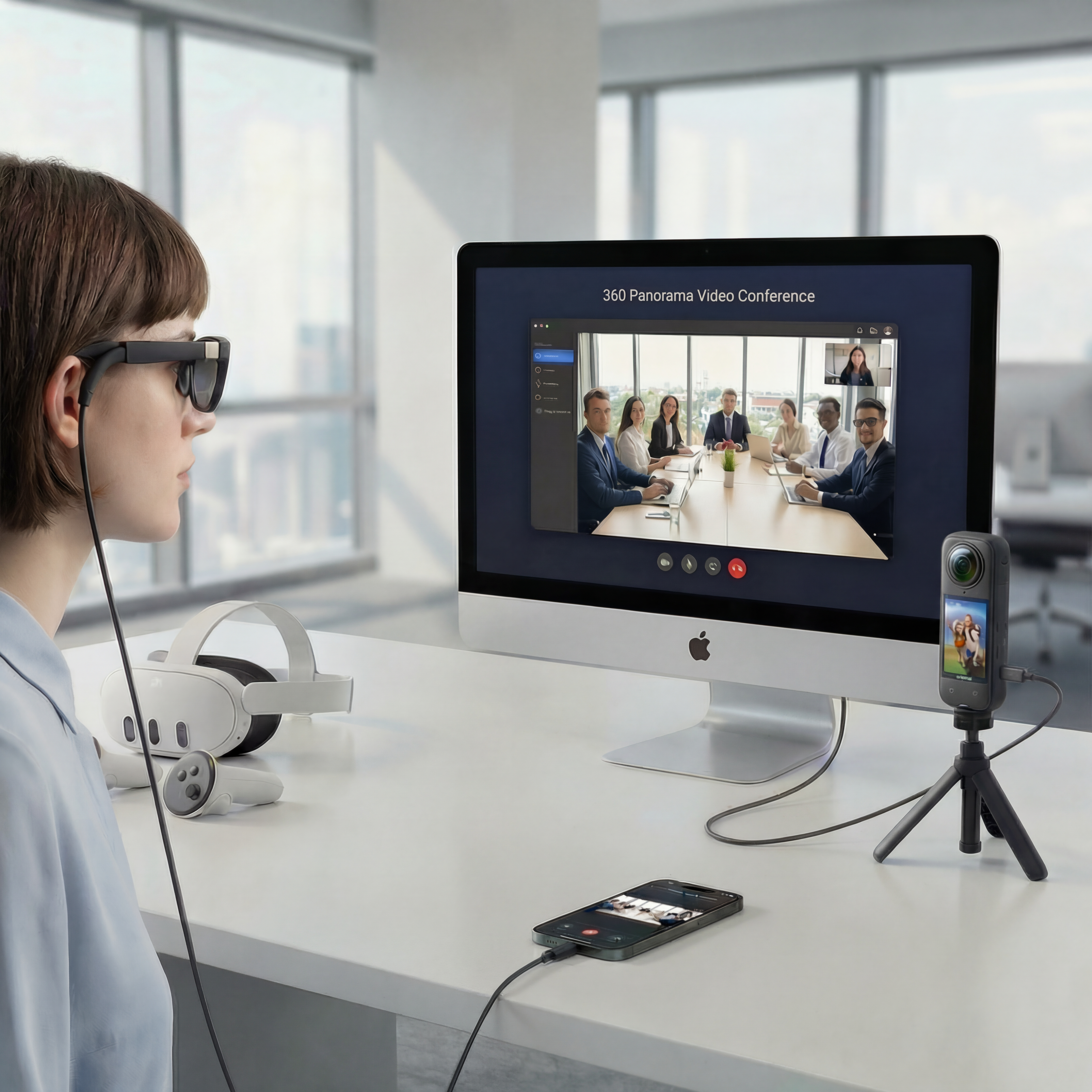
One live environment. Independent views. Each participant chooses where to look, without changing anyone else’s view.
Webcam mode is only the first check
A camera appearing in your browser’s device list does not prove it is sending a usable panorama. Start with Insta360’s official X5 support for current firmware requirements, USB webcam instructions, and supported output modes. If the available mode supplies only a flat image, use it as flat video rather than labeling it 360°.
Prepare a wired connection
Use a USB cable that supports data, a compatible computer, and the camera’s documented webcam USB mode. A charge-only connection will not provide a camera device.
Choose the browser device
Allow camera access for CallPano and choose the Insta360 camera from the camera selector. Close other applications using the camera if it is unavailable.
Verify the actual output
A full equirectangular image represents the complete panorama, typically in a 2:1 layout. A normal-looking cropped webcam view is not equivalent, even if the camera itself captures 360°.
Test with another participant
Ask a guest to pan in more than one direction. Confirm that the scene is not cropped or badly distorted and that their viewing direction does not change yours.
A browser camera workflow, not arbitrary stream ingestion
This guide covers a camera exposed to the browser as a selectable video input. It does not promise that CallPano accepts an arbitrary RTMP, RTSP, network stream, or video file as a live panoramic source. If your firmware or computer cannot expose full equirectangular output, resolve that compatibility issue before using panoramic mode. Check audio separately and avoid duplicate microphones or speakers that cause echo.
Set up an Insta360 X5 for a CallPano browser call
- 1
Check official X5 instructions
Read Insta360’s official X5 support for the current webcam procedure, firmware requirements, and computer compatibility. Verify whether the supported output mode can provide a full equirectangular panorama; do not assume that all webcam modes do.
- 2
Connect by USB and select webcam mode
Connect the X5 to your supported computer with a data-capable USB cable. Follow Insta360’s current on-camera USB mode instructions to select webcam operation. Keep the camera powered and close other programs that may be using it.
- 3
Allow access and select the camera
Open your CallPano room link in a supported browser. Allow camera access, then choose the Insta360 device in the camera selector. If it is missing, check system permissions, the USB connection, and the official instructions before continuing.
- 4
Verify the panorama before choosing 360°
Confirm that the selected device supplies the full equirectangular scene rather than a flat, cropped, or reframed image. Only then select the 360° Camera device option for panoramic viewing. Selecting this option does not convert a flat feed into a panorama.
- 5
Test the call and guest controls
Join a test call with another participant and ask them to pan around independently. Check stitching, orientation, lighting, connection quality, and audio. If the scene is distorted or incomplete, stop and correct the camera output or use standard flat video instead.
Start free. Choose the plan that fits.
30 trial participant-minutes for new accounts, not a monthly reset. No credit card required to start.
- Free
- 30trial participant-minutes for new accounts
- Starter
- $29per month
- Pro
- $99per month
- Enterprise
- $299per month
Allowances and limits vary by plan. View Plans for participant-minutes, rooms, and billing details.
Frequently asked questions
Does any X5 webcam mode work for interactive 360° calls?
No. The browser must receive full equirectangular panoramic output. A flat or reframed webcam feed is suitable for ordinary video, not independent 360° viewing. Confirm the current firmware and output capabilities with Insta360 and test your setup.
Where are the official X5 webcam instructions?
Use Insta360’s official X5 support and find the webcam or USB connection instructions for your camera firmware. Follow the manufacturer’s current guidance rather than relying on a fixed menu path in this guide.
What if the X5 does not appear in my browser?
Check that your USB cable supports data, the camera is in its documented webcam mode, and system and browser permissions allow camera access. Close other camera applications. Reconnect the camera and check the selector again; consult official support if the device is still unavailable.
Why does the panoramic image look distorted?
The source may be cropped, reframed, incorrectly oriented, or not full equirectangular output. Check the camera’s actual output and mode first. A panoramic viewing option cannot restore missing scene coverage from a flat input.
Can I paste an RTMP or RTSP stream URL instead?
This guide describes selecting a camera device exposed to the browser. It does not establish support for arbitrary RTMP or RTSP ingestion. Use the documented browser-camera workflow and verify the complete setup before a session.
Do my guests also need an X5?
No. Guests can view the shared panorama in a supported browser without a panoramic camera of their own. A headset is optional, and immersive features depend on browser and device support.
Check your X5 before the real meeting
Create a room and use your 30 trial participant-minutes to verify the camera output and guest experience together.
No credit card required to start.