
Join a live panoramic meeting in a supported VR browser
Last updated:
For teams testing optional headset viewing of real spaces
A headset can offer another way to look around a live panoramic call, but it is not required to take part. CallPano runs in a supported browser, with optional WebXR viewing and head movement where available. Test your particular headset and browser first; there is no native CallPano headset app.
30 trial participant-minutes. No credit card required to start.
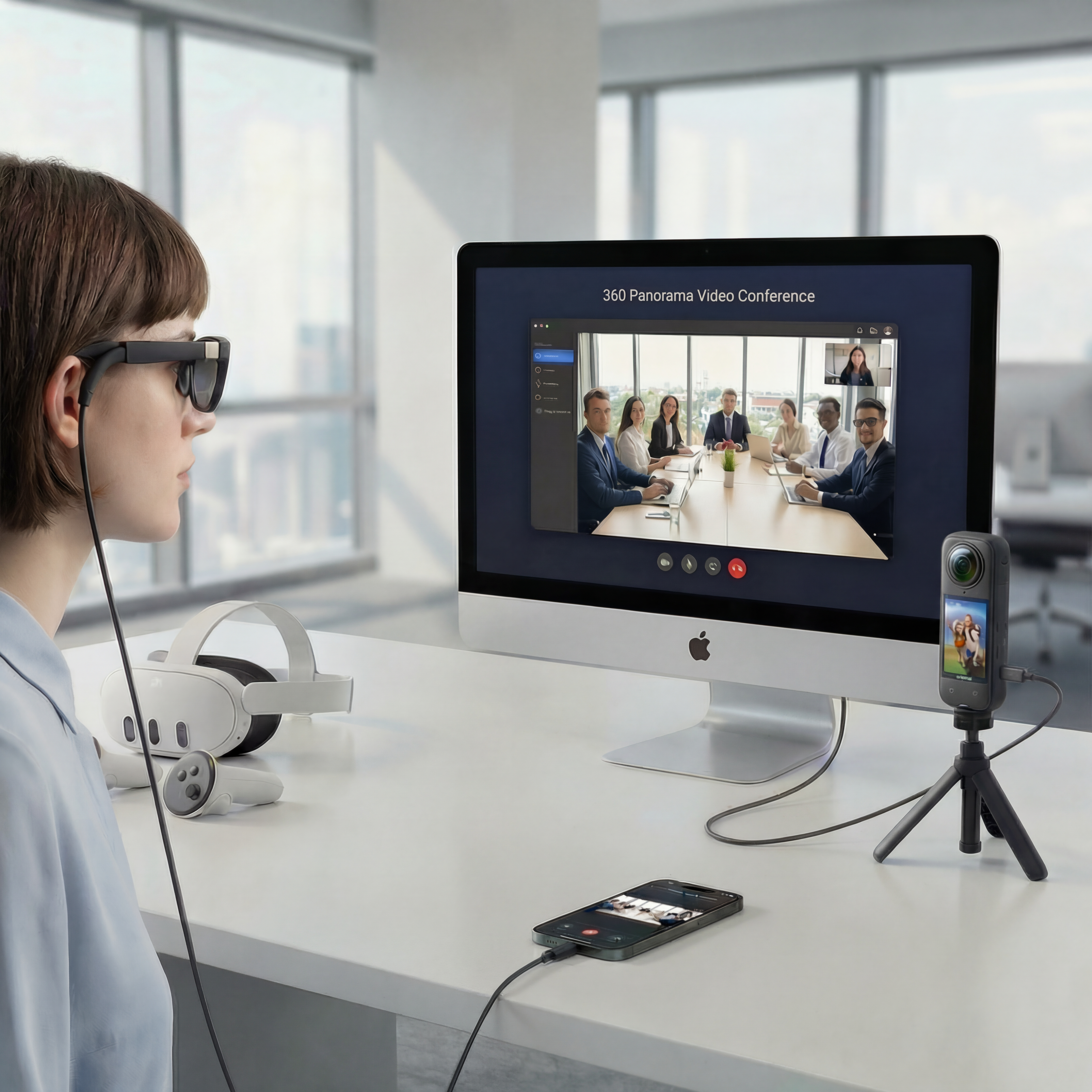
One live environment. Independent views. Each participant chooses where to look, without changing anyone else’s view.
Browser access and immersive support are different checks
Opening a meeting page does not guarantee that a device supports immersive viewing. WebXR availability, permissions, browser versions, and headset capabilities all matter. Start with a normal browser call, verify the panoramic source, and then test immersive viewing on the actual device you plan to use.
Make headset viewing optional
Some guests can use a supported VR browser while others pan and zoom on a normal screen. A headset is not needed to join the conversation.
Look around with supported head movement
Where WebXR and device support allow it, head movement changes viewing direction within the panorama. It does not move the camera to a new place.
Keep the view live
Talk with someone on location as they share a compatible panoramic source. Ask them to reposition the camera when a different physical viewpoint is needed.
Use the browser workflow
Open the guest invitation in a supported browser. CallPano does not provide a native Quest app; immersive features must be checked in the browser itself.
A live panorama is not a walkable virtual world
Use a compatible Insta360 X4 or X5 webcam setup that supplies a full equirectangular panorama to the browser, not a cropped or reframed flat image. Check firmware, USB mode, computer, browser, audio, and connection quality together before the session. Optional Meta Quest browser/WebXR viewing and head tracking depend on device, browser, and permissions. The panorama represents the camera’s surroundings from its current position, not a six-degree-of-freedom scene you can walk through. Do not assume stereoscopic depth. Image quality, network conditions, and camera movement can affect comfort; return to a normal screen if needed.
From room to live 360° in three steps
- 1
Create a Room
Create your host account and set up a room from the dashboard. Schedule your meeting if you want to arrange it in advance.
- 2
Share the Link
Send the invitation to your participants. Guests use a supported browser without a CallPano account or app download. Test permissions and room access before the session.
- 3
Go Live in 360°
Test an Insta360 X4 or X5 through a compatible webcam mode that supplies full panoramic output, not just a flat webcam feed. Camera firmware, computer, and browser compatibility matter. Once the panorama is working, guests can look around independently.
Start free. Choose the plan that fits.
30 trial participant-minutes for new accounts, not a monthly reset. No credit card required to start.
- Free
- 30trial participant-minutes for new accounts
- Starter
- $29per month
- Pro
- $99per month
- Enterprise
- $299per month
Allowances and limits vary by plan. View Plans for participant-minutes, rooms, and billing details.
Frequently asked questions
Do I need to install a native VR app?
No native CallPano Quest app is provided. Use a supported headset browser. Optional immersive viewing depends on the device’s browser, WebXR support, and permissions.
Does every VR headset or browser support immersive meetings?
No. Do not infer immersive support from a browser being able to open the meeting page. Test the actual headset, current browser, permissions, audio, and live panorama before relying on the setup.
Can I look around by moving my head?
Optional head tracking can change your viewing direction where the headset browser and WebXR support it. It does not provide a new physical camera position or let you see behind objects.
Can people without headsets join the same call?
Yes. Guests can use a supported browser on a normal screen and pan and zoom independently. They do not need a headset or a panoramic camera of their own.
Is this a stereoscopic or walkable 3D meeting space?
Do not assume stereoscopic depth or a walkable reconstructed environment. The live panoramic view comes from the camera’s current position. The host must physically move the camera to show another location.
What should I do if immersive viewing is unavailable or uncomfortable?
Use normal-screen viewing in a supported browser and check the headset’s browser and permission support separately. Test with a stationary camera first, avoid abrupt movement, and stop immersive viewing if it causes discomfort.
Test the headset, not just the meeting link
Check a live call with your actual browser and camera setup, and keep normal-screen viewing available for guests.
No credit card required to start.